

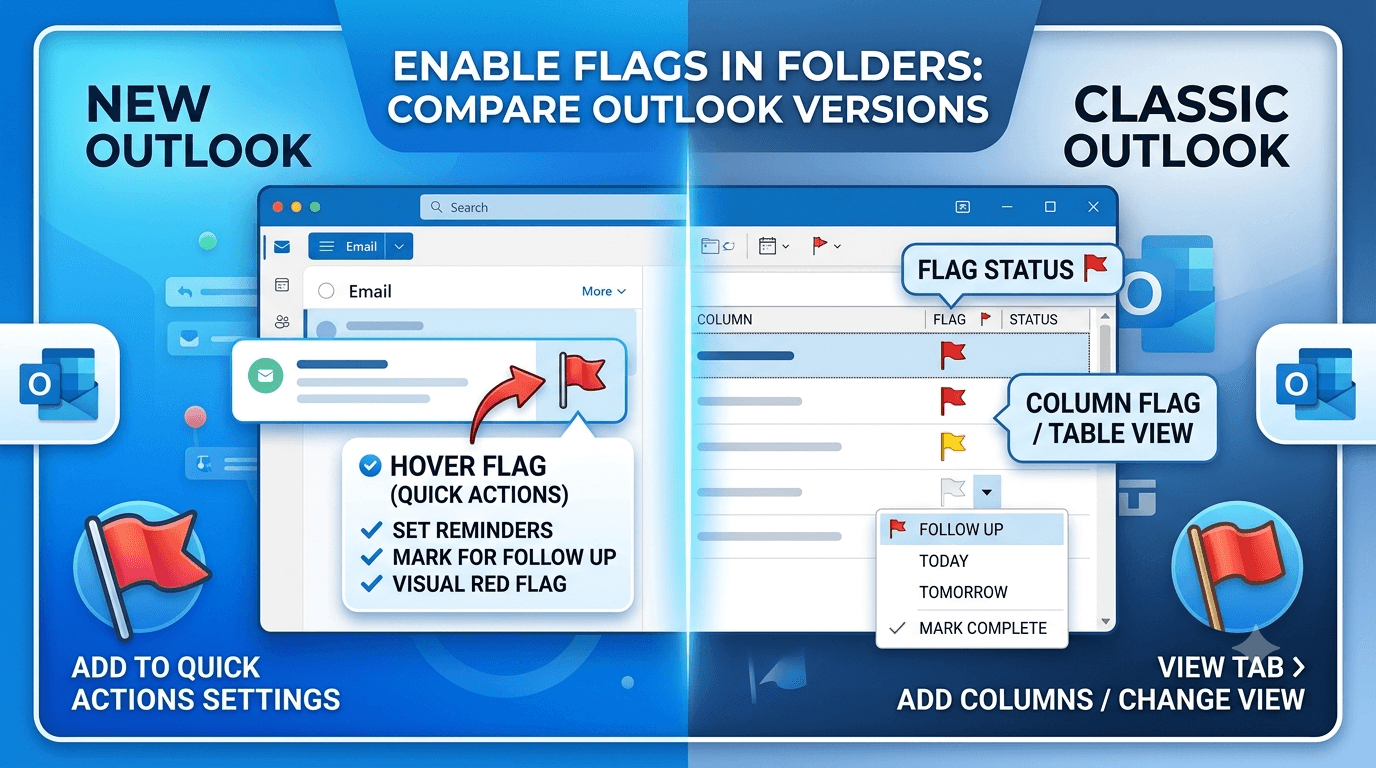
This issue may be due to your folder type, view settings, or Outlook setup. Try these steps to turn on and use flags in your new folder:
1. Confirm How You’re Trying to Flag Emails
- In your list of emails, find the small flag icon at the end of each row.
- Left-click the flag to set a default option, like “Today.”
- Right-click the flag to pick other options, such as “Tomorrow,” “Next Week,” or “Custom.”
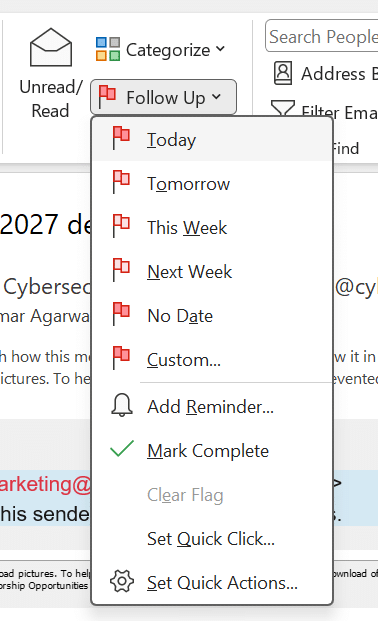
- In the open email: Go to the Home or Message tab, then click Follow Up in the Tags group to apply a flag or reminder.
2. Check the Folder’s View Settings
In Outlook Classic:

- Select the folder, go to the View tab.
- Click Change View and select Single or Compact.
- Then go to View Settings > Columns and confirm that “Flag Status” or “Due Date” is selected.
- If needed, click Reset View to restore the default layout.
In New Outlook for Windows:
- Try switching between view modes like “Compact” or “Single.”
- Restart Outlook to refresh the interface.
3. Restart Outlook and Your Computer
- Close Outlook completely.
- Restart your computer.
- Reopen Outlook and check if flagging is now available.
4. Recreate the Folder (If Practical)
- Move emails to a temporary folder.
- Delete the problematic folder.
- Create a new folder with the same name.
- Move emails back and test flagging again.
5. Update Outlook
- Go to File > Office Account > Update Options > Update Now.
- For New Outlook, check for updates via Windows Settings.
6. Enable Flags in New Outlook & Outlook on the Web:Layout & Settings.
- Click the Gear (Settings) icon in the top-right corner.
- Go to Mail > Layout.
- Look for the Message list section and select Show flags.
- Click Save at the bottom if prompted.

Verification: Return to your folder view and hover over any email; the flag icon should now appear on the right side.
We hope these steps help you get flagging working again in your folder. Let us know if you have any questions or need more help.