

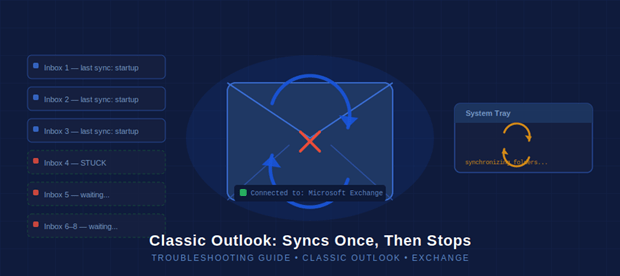
Outlook loads, does one sync pass, then the tray icon spins forever while no new mail arrives. Microsoft Support can’t pin it. Here’s the actual root cause — and a ranked fix list that works even when reinstall didn’t.
Symptom Fingerprint
- Sync icon in system tray reads “Microsoft Outlook is synchronizing folders” — permanently
- Status bar says “Connected to: Microsoft Exchange” — no error, just silence
- 8+ inboxes; all sync on first load, none after that
- New Outlook (web or app) works fine — isolated to classic Outlook
- Reinstall, new profile, registry path change — all tried, all failed
The user has asked the question on Reddit.
https://www.reddit.com/r/Outlook/comments/1tc7ded/outlook_desktop_not_syncing/
Root Cause
Classic Outlook uses a Send/Receive Group scheduler to poll Exchange. With many accounts the scheduler gets a stuck lock — registers a sync as “in progress” and never clears it. The tray icon is not cosmetic: it signals that the scheduler thread is blocked. A compounding factor is OST file bloat — when Outlook downloads shared and public folders, each of your 8 inboxes silently pulls a full local copy, inflating the .ost by GBs per account and causing the scheduler to time out mid-pass.
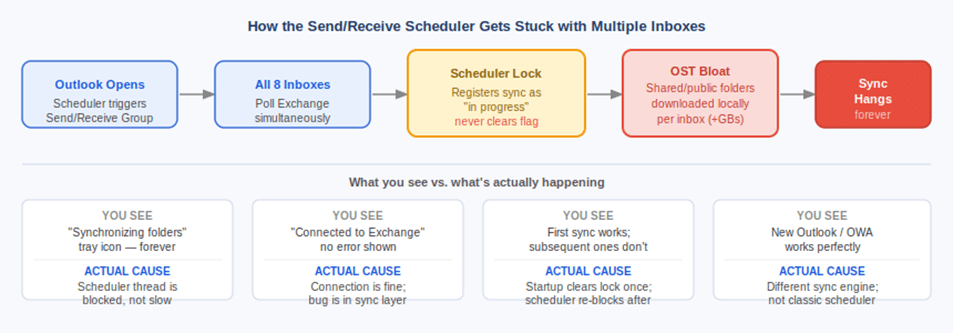
Fig 1. How the scheduler gets stuck — and what each visible symptom actually maps to
Fixes — In Order
| [01] Reset Send/Receive Groups ▲ TRY FIRST |
| Press Ctrl + Alt + S Select ‘All Accounts’ → click Reset Set schedule to 5 min → OK Restart Outlook Why: Clears the stuck scheduler state without touching your data. |
| [02] Kill the Orphaned Sync Process ▲ TRY FIRST |
| Task Manager → Details tab → find OUTLOOK.EXE If CPU is 0% but tray icon spins → force-kill it Relaunch Outlook If it recurs in minutes → move to fix 03 Why: A zombie sync thread can survive even when the UI looks idle. |
| [03] Compact or Rebuild the .ost File ▲ IF 01–02 FAIL |
| File → Account Settings → Data Files → select account → Settings → Compact Now For accounts >10 GB: close Outlook, delete the .ost file entirely Outlook rebuilds it from Exchange on next launch Path: %localappdata%\Microsoft\Outlook\ Why: A fragmented or oversized .ost causes the scheduler to time out mid-pass, which looks identical to a network hang. |
| [04] Uncheck Shared & Public Folder Downloads (Multi-inbox Must-do) ▲ KEY FIX FOR 8+ INBOXES |
| File → Account Settings → select each Exchange account → Change Click ‘More Settings’ → Advanced tab Uncheck ‘Download Shared Folders’ Uncheck ‘Download Public Folder Favorites’ Repeat for EVERY inbox → OK → Restart Outlook Why: Each shared/public folder syncs a full local copy into the .ost. With 8 inboxes this silently inflates local storage by 10–20 GB, overloading the scheduler. The single highest-impact fix for multi-inbox setups. |
| [05] Stagger Accounts Across Separate Send/Receive Groups ▲ ADDITIONAL 8+ INBOX FIX |
| Ctrl + Alt + S → New → name it ‘Batch 2’ Add 4 of your accounts to this group Schedule offset by 2–3 min from group 1 Repeat for a third group if needed Why: 8 accounts polling simultaneously overwhelms a single scheduler slot. Splitting forces a round-robin instead of a pile-up. |
| [06] Disable the Outlook System Tray Icon ▲ BELT + SUSPENDERS |
| File → Options → Advanced Uncheck ‘Show Outlook in the notification area of the taskbar’ Restart Why: The tray process runs as a separate thread and can conflict with the main sync loop on older classic Outlook builds. |
| [07] Check for Conflicting COM Add-ins ▲ LAST RESORT |
| File → Options → Add-ins → Manage: COM Add-ins → Go Disable ALL add-ins → Restart → test sync Re-enable one at a time to isolate the culprit Why: AV scanners and CRM add-ins (Salesforce, HubSpot) hook into the sync event loop and can block completion with large mailbox counts. |
Verdict
| The root issue is not a broken installation or a network fault — it is classic Outlook’s single-threaded sync scheduler getting overwhelmed by too many accounts and too much local data. New Outlook and OWA working fine is the clearest diagnostic signal: the Exchange connection is healthy. The problem lives entirely inside the classic Outlook sync layer. 1. Start with Ctrl+Alt+S → Reset Send/Receive Groups. This clears the stuck scheduler lock in under 30 seconds and resolves the issue for most users without touching any data. 2. If you have 8+ inboxes, fix the shared folder setting immediately. Account Settings → More Settings → Advanced → uncheck Download Shared Folders and Download Public Folder Favorites on every inbox. This is the single most impactful fix for multi-inbox users — shared/public folder downloads inflate the local .ost by 10–20 GB unnoticed, and the scheduler cannot finish a sync pass against that volume. 3. Compact or delete any .ost file over 10 GB. Find them at %localappdata%\Microsoft\Outlook\. Deleting the .ost is safe — Outlook rebuilds it from Exchange on next launch. 4. If sync still hangs, split accounts across 2–3 Send/Receive groups staggered 2–3 minutes apart. This forces a round-robin poll instead of all 8 accounts hitting the scheduler simultaneously. 5. Still failing? Disable all COM add-ins (File → Options → Add-ins → COM Add-ins → Go → uncheck all). AV scanners and CRM integrations are the usual suspects. Re-enable one at a time. Bottom line: this is a fixable scheduler and data-size problem, not a Microsoft Exchange fault. You do not need to migrate to New Outlook — though if none of these fixes hold, New Outlook handles multiple Exchange accounts without the scheduler bottleneck and is the path of least resistance going forward |